Team access
In VibeVO you can give a colleague access to your advertiser account — so they can view campaigns and analytics, or edit them. Access management is found in Settings → Access.
Access levels
| Level | Permissions |
|---|---|
| Viewer (read-only) | Can view campaigns, statistics, and billing. Cannot create or edit campaigns, top up the balance, or manage access. |
| Editor (write) | Everything available to Viewer, plus creating and editing campaigns, uploading creatives, and submitting for moderation. Topping up the balance and managing the access list remain with the account owner. |
Editor does not make a colleague platform staff or remove campaign-status restrictions. It also does not authorize managing all of the owner invitations. Shared-wallet actions and private finances may require the owner.
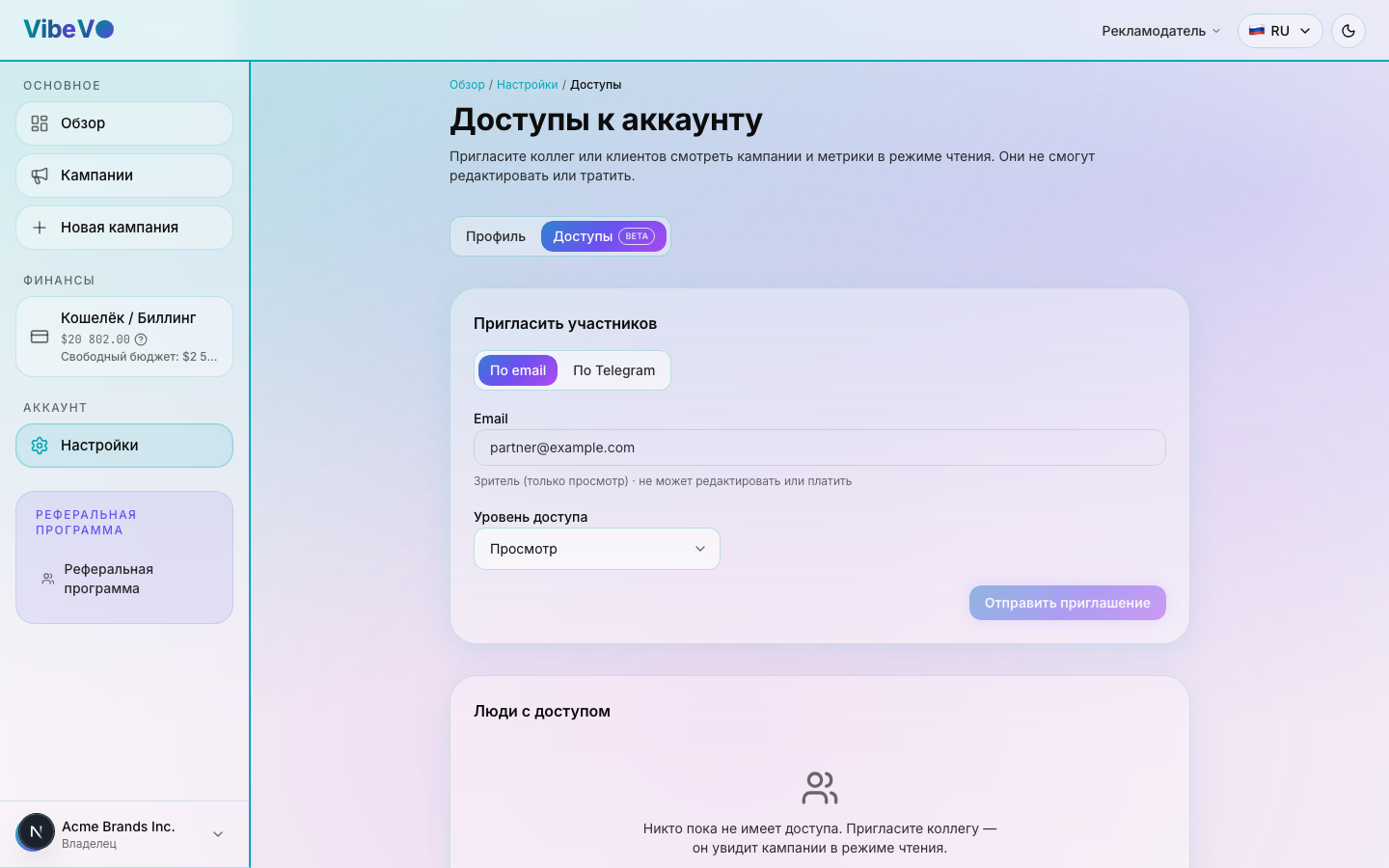
How to invite a colleague
The owner opens Settings → Access, chooses email or Telegram, and selects View or Edit. If viewing another account, switch back to your own to manage your invitations.
Enter a colleague email address or Telegram username. Follow the result shown in the form: a sent message or created invitation does not mean access has been accepted.
Choose View when a colleague only needs data. Edit allows actions on behalf of the account within available features and can spend its funds. Grant it only to trusted colleagues.
Invitation statuses
A Pending invitation is not an active access grant. Once accepted, access becomes Active. An expired invitation needs to be sent again; a revoked one does not allow account access.
Roles and permissions
View (Viewer) allows reading available account data, campaigns, statistics and billing, but not changing them. Edit (Editor) also allows available campaign operations such as creation, material changes and submission for moderation.
Editor does not make a colleague platform staff or remove campaign-status restrictions. It also does not authorize managing all of the owner invitations. Shared-wallet actions and private finances may require the owner.
Managing members
The owner can switch View / Edit in an active access row in People with access. Changing that role does not require revoking access and inviting again. Check that the change saved; on error, the previous role remains in effect.
How to revoke access
In the People with access table, click Revoke in the row of the person you want to remove and confirm the action. After revocation, they immediately lose access to the account.
Was this article helpful?
Updated: September 23, 2026